Introduction
Right now there’s a conflict going on within the Bitcoin community. The conflict comes down to whether Bitcoin should be expanded to include non-monetary data. I am a firm believer that Bitcoin must be used for monetary purposes only – additionally I also believe Bitcoin is solely for people.
A means of voicing how you want Bitcoin to proceed on this matter is to run a specific version of a Bitcoin Node with the attributes that you care about. This signals to the network your vote and your voice.
Even though I have some technical expertise, I still find doing tech stuff like running a node to be a pain in the neck. The UX/UI in Bitcoin still sucks and it’s always cumbersome. Despite having run nodes in the past, it’s still not laymen friendly and it’s quirky enough that I’ve now decided to write down the steps that I’ve found to be the simplest for myself and others.
I’m in Africa and as such, I want these steps to be easy for a regular African to implement using a low cost, simple approach to running a Bitcoin node.
Assumptions
I’m going to assume that:
- you’ve installed Linux (Mint) and can work your way around Linux and;
- you have some knowledge of Bitcoin and nodes.
This process does involve verifying the Bitcoin Knots + BIP110 software, but in this post I’m going leave out explaining hashes, private keys, SHA-256, etc. I’m leaving out all the complicated explanations. I find this stuff tricky myself because I only deal with it once in a blue moon and it will just bloat the post if I do explain it.
I reckon I’ll make a specific post about how all that stuff works later. For now, the goal is to document the easiest, cheapest way to get a node running.
Hardware
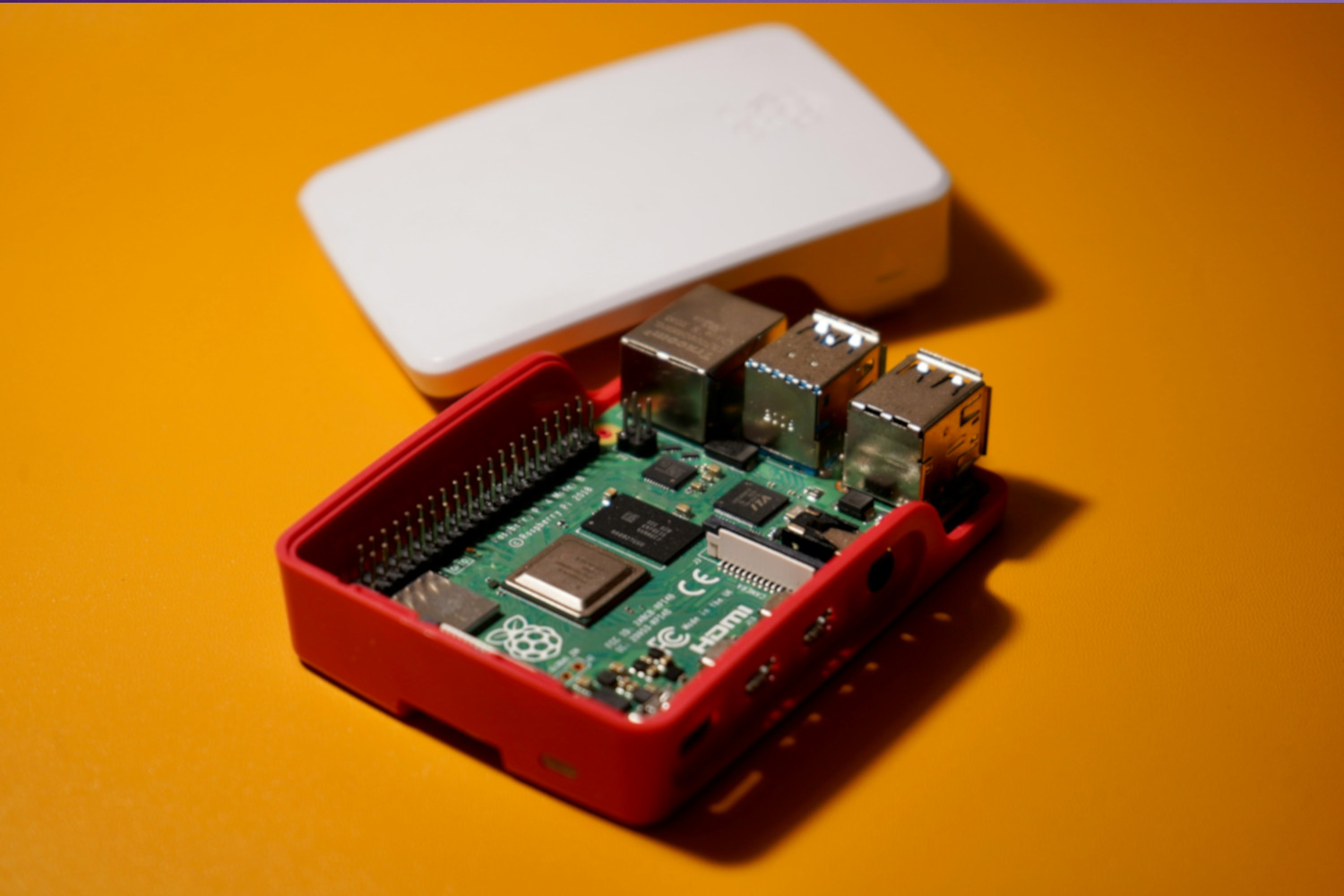
I had a CloudGate C5 computer lying around so I used that for my Node because that’s free. A Raspberry PI 5 costs about R2599 so that would potentially be a better choice. Using old hardware you got lying around is an solid idea.
| Computer | CloudGate C5 | R8,711 | |
| External Hard Drive | Western Digital Elements 3TB | R1,499 | |
| UPS(Optional) | GIZZU 60W 69Wh 21600mAh (Larger battery) Mini POE DC UPS | R699 | Still have to set this up, but its a good idea to have a UPS |
| R10909 |
You also need a monitor, keyboard, mouse and the cables. Optionally, you can even use a old laptop.
You can also get preconfigured servers with the hardware and software such as:
These are well priced, but you’ll likely need to pay import duties on these.
Software
Previously I ran MyNode on a Raspberry PI4, but this time I decided to run the Bitcoin Knots + BIP-110 software by itself running on Linux Mint.
After seeing how cumbersome it was verifying software is on Windows, I decided to use Linux because it’s just easier and the user experience is better.
Setting up Bitcoin Knots with BIP110
Step 1 : Preparation
Open the terminal on Linux and update your system by running this command
sudo apt-get update
Confirm that you’ve got GPG(GNU Privacy Guard) installed. GnuPG is a tool that allows you to encrypt and sign your data and communications.
gpg --version
If you don’t have GPG installed, then run the following commands depending your flavor of Linux:
For Debian (Ubuntu, Pop !_ OS, Rasberry Pi OS) run
sudo apt install gnupg
For Red Hat(Fedora, CentOS, etc.) run
sudo dnf install gnupg
For Arch
sudo pacman -S gnupg
Now determine machine architecture of your machine by running
uname - m
The uname command will give you a whole bunch of info about your system, whereas the flag -m will tell you the machine architecture. You can use this info to better determine the correct Knots file to download. In my case, the terminal displays “x86_64” after executing the command uname -m. Take note of this information, you’ll need it later.
Enter your Downloads directory with the following command so the three required files for Bitcoin Knots + BIP-110 will download directly into this folder.
cd Downloads
Now you need to download 3 specific files.
- Bitcoin Knots Version
- SHA256SUMS checksums
- SHA256SUMS.asc signatures
Open your browser can navigate to https://github.com/dathonohm/bitcoin/releases
You can obtain the three files you need from this site.

- Bitcoin Knots Version – because my “uname – m” command displayed “x86_64”, I’ll download the file with “x86_64” and “linux” in it. This file with debug in the name can be ignored. This file you’re obtaining could be a fraudulent file, or malicious and dangerous to your system so we will need to verify it’s authenticity with the subsequent files and processes.
- SHA256SUMS – This is a plain text document that contains a hash(es). It’s created by the dev(s) by running the SHA-256 algorithm on a file – this results in a hash being generated. It’s a form of protection, in that if one bit of data in the file is fraudulently changed then the hash will be different and you can spot a fraudulent file. It proves integrity of the file. It proves the file you downloaded is bit-for-bit identical to the one the developer intended. It is also known as a digital fingerprint.
- SHA256SUMS.asc – This is a signature file. Think of it like a wax seal where the dev stamps the file with his own unique imprint. It’s created when the SHA256SUMS from above is electronically signed using the devs private key, something only they have. It proves that the hash itself hasn’t been swapped out by a hacker. It answers the question: “Can I actually trust this list of digital fingerprints?”
Right click on each of these file, copy the link address and then in the terminal type “wget” and paste the file name and hit enter.
wget https://github.com/dathonohm/bitcoin/releases/download/v29.2.knots20251110%2Bbip110-v0.1/SHA256SUMS
wget https://github.com/dathonohm/bitcoin/releases/download/v29.2.knots20251110%2Bbip110-v0.1/SHA256SUMS.asc
wget https://github.com/dathonohm/bitcoin/releases/download/v29.2.knots20251110%2Bbip110-v0.1/bitcoin-29.2.knots20251110+bip110-v0.1-x86_64-linux-gnu.tar.gz
The last set of info to get, are the developers signature keys.
You can do this with
git clone https://github.com/dathonohm/guix.sigs
With Linux all these commands like git, gpg, wget, etc are directly built into linux making it real easy to use. You don’t need to download and install any additional software – much of what you need is already available. That’s why I think running knots on Linux is much better than Windows and a heck of a lot cheaper than Apple.
You’ve now acquired all the files from the internet that you need.
Step 2 : Verify the Software
There is an important phrase in Bitcoin called “Don’t Trust, Verify”. In this case it means you need to confirm the authenticity of the Bitcoin Knots software. Don’t just install any random software especially when it means you’re dealing with money.
Now, admittedly, this step is the weirdest for me because I rarely check signatures on software and I don’t understand the intricacies of it. In any case, it’s still good to verify especially because Linux makes it so easy.
Import the builders keys file. This command will simply import the public keys of the developer(s) into your local keyring/machine.
gpg -- import guix.sigs/builder-keys/*
Verify the SHA256SUMS.asc using the imported keys file
gpg --verify SHA256SUMS.asc
sha256sum -- check -- ignore-missing SHA256SUMS
If you get an OK result, then all should be good and this software is legit.
All in all, that’s about 11 commands from command line that you need to run. It’s surprisingly quick to complete.
Here’s all the commands listed
sudo apt-get updategpg --versionuname - mcd Downloadswget https://github.com/dathonohm/bitcoin/releases/download/v29.2.knots20251110%2Bbip110-v0.1/SHA256SUMSwget https://github.com/dathonohm/bitcoin/releases/download/v29.2.knots20251110%2Bbip110-v0.1/SHA256SUMS.ascwget https://github.com/dathonohm/bitcoin/releases/download/v29.2.knots20251110%2Bbip110-v0.1/bitcoin-29.2.knots20251110+bip110-v0.1-x86_64-linux-gnu.tar.gzgit clone https://github.com/dathonohm/guix.sigsgpg -- import guix.sigs/builder-keys/*gpg --verify SHA256SUMS.ascsha256sum -- check -- ignore-missing SHA256SUMS
Step 3: Run Knots
Now that you’ve verifed that the software is fine, you can proceed to use it.
Extract the file in your download folder. You can right click on the file and click extract.
Bitcoin Knots folder location
I decided to keep the knots app/folder in the Documents folder for simplicity. But then I found out I couldn’t run the bitcoin-cli command from anywhere in the terminal – I needed to update my PATH variables so that terminal knew where it was. You can also create a symbolic link and place that in your /usr/local/bin for all users or in ~/.local/bin for the current user.
Running the bitcoin-cli command from anywhere in the terminal isn’t neccesary, it’s superflous. But it does make performing the very last step of making your node discoverable over TOR to the network a little easier. You don’t have to do this, but it’s kind of nice knowing that the network can see your node.
I chose the Documents directory because I’m a Linux noob and this configuration tech stuff annoys me.
Open the folder, open the Bin folder and then double click on bitcoin-qt to run Knots.
This is the first screen you will see

⚠️Quirk : Now typically you would select “Use a custom data directory” and select your external USB drive. You need to use the external USD drive because the Bitcoin Blockchain that you will download is huge. However, Linux may not pick up (see) your external USD drive for security reasons – the external drive could be malicious. Therefore, you can’t by default select the external drive to store the blockchain! Super annoying but you’ve got to workaround this.
Click “Ok” or Cancel this window or close down Knots.
Open up the “bitcoin.conf” file in the Knots folder.
In that file, you’ll see a section called “Specify Data Directory” with the following info.
# Specify data directory# datadir=<dir>
Replace the <dir> part with the exact location to you external USD drive. You can get that exact location by using the explorer, navigating to the external USB drive and then copying the location from the explorer.
Now when you reopen Knots you go directly to the Knots app and it will automatically start syncing the entire Bitcoin blockchain to the external USB drive.
And that’s it. You’re done setting up your Bitcoin Knots node.
Step 4 : Make Knots reachable over TOR
It’s nice getting a node up and running, but this next process will confirm that your node is reachable over the TOR network and will be counted as a node that it running BTC knots.
I’m not going to cover this aspect in this blog post, because Paul Lamb does a brilliant job and I’ll point you to his work. It’s pretty simple to do – less than 5 minutes of work.
Here’s the article about the process, and this accompanying video spells it out for dummies like me.:
And that’s it. Until the next time you need change nodes:)
Additional Great Information
I used much of the information around verifying Knots from Satashis YouTube video. It’s really good stuff, and you can check it out here.
Why I choose to run Bitcoin Knots + BIP 110
I’ll cover the major broad reasons why I’m running knots. This is a very brief section with all my opinionated ideas, so feel free to skip over this section.
I believe that Bitcoin is money. Non-monetary uses have no place in Bitcoin – that’s what the other cryptocurrencies are for. I like Ethereum as well as a few of the other cryptocurrencies, and all these novel use cases have a space there, not on Bitcoin.
This asinine preoccupation with non-monetary Bitcoin uses, has detracted from developments that I care about like increased privacy, security, improved user experience and quantum proofing. Over the years, I’ve seen more developments around inscriptions, taproot, BRC tokens, bitcoin bonds and other crap that is useless for regular people. Adoption by financial institutions and governments is outpacing adoption by regular people and this is lamentable. By running Bitcoin Knots I’m voting that Bitcoin is only intended for monetary uses.
Running a node gives me a opportunity to deepen my understanding of bitcoin. There’s enormous amounts that I don’t know about Bitcoin, and running a node is a really good way to expand your knowledge of the space. I’d like to learn more about UTXOs, read the Bitcoin source, understand taproot, learn about all the bugs, run a lightning node, etc. going forward.
How I want to run a Node in future
I’ve had to recreate my node three time now with lots of trial and error, and learn about the best ways for me and I suspect in future I’ll have to do this again as things change. A lot of info out there is from people in developed nations running a node on expensive macs, with great hardware, and using third party software that abstracts away how things work.
As someone in the global south I want to find the cheapest, most robust, efficient way to run and even recreate a node. Furthermore, I’d love to find a way to run the node as a server that I can SSH into so that I don’t have to manage it from the node physically. I’m not even sure if that’s a good idea but I would like that.
Right now I’m only running a node to help decentralize the network and voice my opinion about the direction I want Bitcoin to head in. But going forward I definitely like to leverage more of the Node capabilities for more secure transactions even though that hasn’t been a big hassle for me.
Finally I need to get my UPS set up to handle power outages that occur very rarely.
Knots Market Share
Bitcoin Knots currently sits at a 22.69% share. It takes between 8% to 15% market capture for the incumbent to experience market trauma i.e. for the incumbent to face collapse. I also understand that the BIP 141 relating to the soft fork for segwit needed only 10% resolve the block size war of 2017. Given this state of affairs I feel confident BIP110 will win out.

Conclusion
This post is more for myself because I suspect I’ll need to recreate a nodes in the future and this is a simple way to document my knowledge and share it. In this post, I’ve covered 11 commands to verify the Knots software, run the software, address various OS quirks. I haven’t delved enough into how the verification works and I’ll do that in a subsequent post once I feel I understand it better than I do now. I trust this post has been helpful, and that you build your node in the global south with great success.
Photo by Praveen Thirumurugan on Unsplash
Leave a Reply